
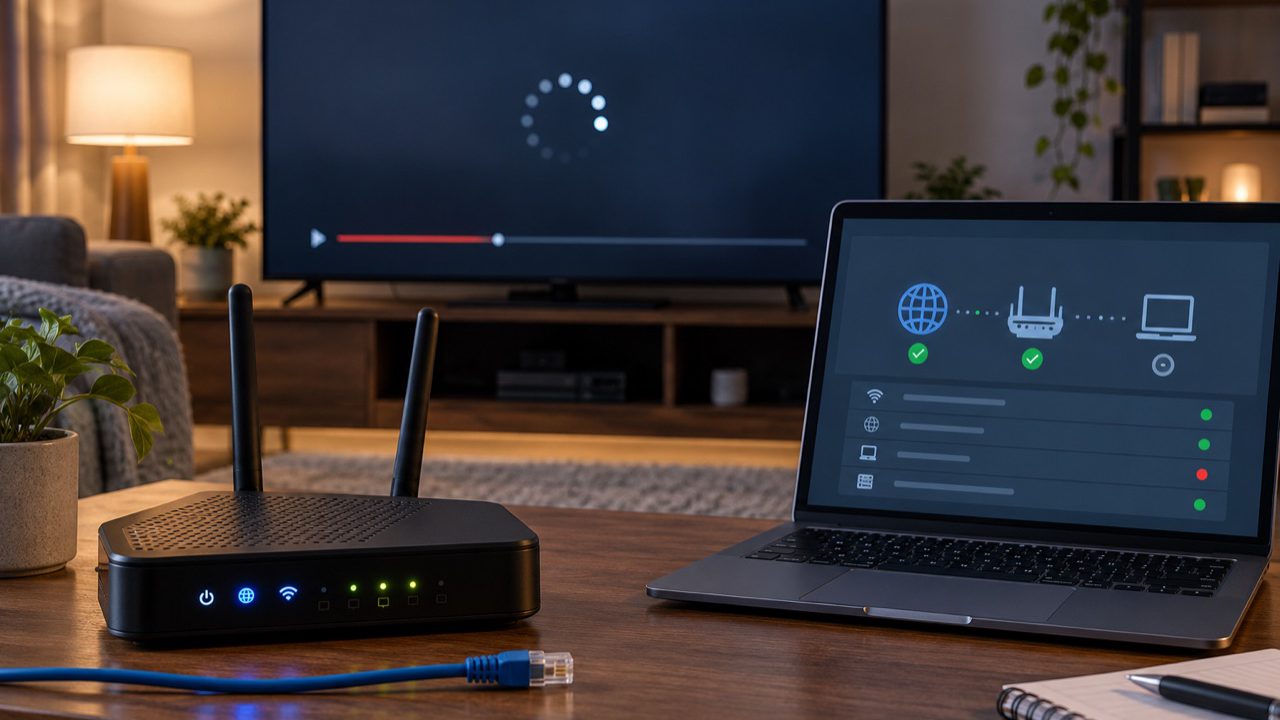
Buffering or a soft picture can come from several places: the home connection, Wi-Fi conditions, the viewing device, the player app or the source being watched. The fastest way to improve the experience is to change one thing at a time and observe the result.
Check whether the problem is local or widespread
Try another channel or an on-demand item before changing settings. If only one item is affected, the television and network may be working normally. If everything buffers, continue with the connection and device checks below.
Stabilise the connection first
- Pause large downloads, cloud backups or game updates on the same network.
- Restart the router and viewing device when they have been running for a long time.
- Move a Wi-Fi device closer to the router or reduce solid obstacles between them.
- Use a wired Ethernet connection when the device and room make that practical.
- Compare the same stream on another device to separate a network issue from a device issue.
A speed test can show whether the connection is generally responsive, but it cannot reproduce every route used by every stream. Consistency matters as much as a single peak number.
Review the television and device output
Confirm that the device output matches a resolution and refresh mode supported by the television. If a high-quality mode causes instability on older hardware, test a lower output setting and compare. Keep the device ventilated; overheating can make a small streaming box slow or unstable.
Keep the player app simple
Update the player through its normal app store, then close other apps that may be consuming memory. If the player offers a reasonable buffer setting, make small adjustments rather than selecting the largest value automatically.
Do not change decoder, output, network and buffer settings all at once. A single controlled change makes it possible to tell what helped and to reverse what did not.
Use the right picture expectations
The labels HD or 4K describe potential output quality, not a guarantee that every programme, device and connection will look identical. Screen size, source quality, the player and the television’s own processing all influence the final image.
A useful troubleshooting order
- Try a second channel or on-demand item.
- Close and reopen the player.
- Restart the viewing device and router.
- Reduce other heavy network activity.
- Test Ethernet or a stronger Wi-Fi position.
- Check for device and app updates.
- Test another compatible player or device.
- Contact support with the device, app and exact symptom.
Give support useful details
When asking for help, include the device model, player name, whether the connection is wired or wireless, when the problem began and whether every stream is affected. Do not include your password in a public message. Streamova support is available through the contact page.
IPTV buffering decision tree
Only one stream fails
Test another stream and another content section before changing the network. Record the affected item and time.
Every stream buffers
Check the connection, device load, player update, and whether other household traffic is using the network.
One device is affected
Compare the same access on another confirmed device. Review storage, software, Wi-Fi placement, and player settings on the first device.
Every device is affected
Restart the router once, test another internet service, note the time, and contact support with evidence if the issue continues.
Run the checks in order
- Test a second stream.
- Close and reopen the player.
- Restart the affected device.
- Pause downloads, updates, cloud backups, or other heavy traffic.
- Move closer to Wi-Fi or test Ethernet where available.
- Update the player and device software from trusted sources.
- Refresh the playlist or EPG without deleting the profile.
- Record the result before changing another variable.
| Send support | Do not send |
|---|---|
| Device model, OS version, player name/version, connection type, affected item, time, exact error, and completed checks. | Password, full private playlist URL, complete payment details, or unrelated personal information. |
Buffering questions
Does a speed test prove the stream should work?
No. A speed test is one clue; Wi-Fi stability, latency, congestion, device decoding, player behaviour, and the individual source also matter.
Should I clear the app or reinstall immediately?
Not first. Test another stream, restart the app/device, and record the login method before removing data. Reinstallation can erase a useful working profile.
When should I contact support?
After the ordered checks show a repeatable problem, send the evidence listed above through the support route.
For broader diagnosis, start at the Help Centre symptom router. If the issue follows one application, compare the player options; if it follows one device, review device and operating-system limits.
Printable worksheet: use the buffering and connection diagnostic worksheet and its downloadable PDF.